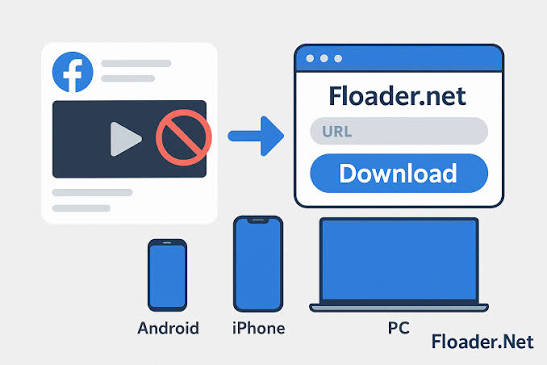

When you find a Facebook video worth keeping, the quality of the download matters as much as the video itself: a blurry copy can spoil a funny moment, a tutorial, or a family memory. SaveFBS is a free, browser-based Facebook video downloader that lets you save Facebook videos, Reels, Stories, photos, and audio in the quality that suits you, including SD, HD, Full HD 1080p, and 4K where the original video supports it. You do not need to log in, install any software, or accept a watermark on your download. This guide explains what each quality option means, how to pick the right one, and how to download in high quality on both desktop and mobile.
What SaveFBS Offers for Video Quality
SaveFBS works entirely in your web browser. You copy the link of a Facebook video, paste it into SaveFBS, and choose from the quality options available for that video. The tool supports MP4 video downloads as well as MP3 audio, so you can save just the sound from a video if that is all you need. The quality options you see depend on the original video itself. If someone uploaded a video in Full HD, SaveFBS can offer you a Full HD download. If the original was only uploaded in standard quality, then only that quality will be available, because a downloader cannot create detail that was never in the original file. This is an important point to understand before you start: SaveFBS gives you the best version of the video that exists, but it cannot upgrade a low-quality upload into a high-quality one. The advantage is choice: you pick the version that fits your screen, storage, and connection.
SD vs HD vs Full HD vs 4K Explained
Video quality labels can be confusing, so here is what each one means in plain language. SD, or standard definition, usually means around 480p. It is watchable on a small phone screen but looks soft on a large screen, and its files are small, quick to download, and easy to store. HD, or high definition, usually means 720p: a clear step up from SD, with sharper details and readable text, while file sizes stay reasonable. For everyday watching on a phone or laptop, HD balances quality and size well. Full HD, or 1080p, is sharper still and looks crisp on a laptop or television, making it a popular choice for videos you want to keep long-term. Finally, 4K, also called 2160p, is the sharpest option, ideal for scenery, performances, or videos you plan to watch on a large 4K screen. The trade-off is size: a 4K file can be several times larger than the same video in HD, so it takes longer to download and uses much more storage. SaveFBS offers 4K only when the original was uploaded in 4K, so you will not always see it as an option.
How to Pick the Right Quality for Your Needs
The best quality is not always the highest one. It is the one that matches how you will watch the video. Start with where you will watch it. On a phone, HD is usually plenty and saves storage and download time. On a laptop or television, Full HD is worth choosing, since a larger screen reveals the softness of SD. Choose 4K when the video is something special that you want to archive at its best, such as a wedding clip, a performance, or a travel video, and when you have the storage space to hold a large file. Next, think about your internet connection. On a slow or limited connection, a smaller HD file will download far more reliably than a large 4K file that may stall halfway. Storage matters too. If your phone is nearly full, picking HD instead of 4K for casual videos can save you a lot of space. Finally, if you only need the audio, such as a song or speech, the MP3 option gives you the sound in a much smaller file. Picking quality this way, based on your screen, connection, storage, and purpose, will give you good results every time.
How to Download in High Quality on Desktop
Downloading in high quality on a desktop computer is simple, and the larger screen makes it easy to check the quality options before you save. First, open Facebook in your browser and find the video you want. Click the share option on the video and copy its link. Next, open SaveFBS in a new browser tab. Paste the copied link into the download box and submit it. SaveFBS will then show you the available formats and quality options for that video. Look through the list and select the quality you want, such as Full HD 1080p or 4K if it is offered. Click the download button for that option, and your browser will save the file, usually to your Downloads folder. Once it finishes, check the file, then move it to a video folder with a clear name so you can find it later. The whole process takes only a few steps, and because SaveFBS runs in the browser, there is nothing to install and no account to create before you begin.
How to Download in High Quality on Mobile
The steps on a mobile phone are very similar, with a few small differences worth knowing. Open the Facebook app or your mobile browser, find the video, and copy its link using the share option. Then open your mobile browser and go to SaveFBS. Paste the link, submit it, and choose your preferred quality from the options shown. On a phone, it is especially worth checking your free storage before you pick 4K, because high-quality files can fill a phone quickly. After the download finishes, the file is usually saved in your Downloads folder or your phone’s file manager. On some phones, you may need to open your gallery or files app to find it, and you can then move it into a video album if you want to keep it organized. A stable Wi-Fi connection helps a lot for larger Full HD or 4K files, since mobile data can be slower and may cost more. If a download seems slow, waiting until you are on Wi-Fi is often the simplest fix.
Storage Tips and Fixing Quality Problems
High-quality videos are wonderful to watch, but they need a little storage planning. Delete downloads you no longer need, and move keepers to cloud storage or an external drive so your device stays fast. If you download a lot of videos, choosing HD for everyday clips and reserving Full HD or 4K for your favourites is a practical balance. Now for common problems. If you only see an SD option when you expected HD, the most likely reason is that the original video was only uploaded in SD, and no higher version exists. If a download stops partway, check your internet connection and your free storage space, then try again. If the downloaded file will not play, make sure it finished downloading completely, and try opening it in a different video player app. If pasting a link gives no results, double-check that you copied the full video link and that the video is publicly available. Small checks like these solve most quality and download issues without any fuss.
Final Thoughts
SaveFBS makes it easy to save Facebook videos in the quality that fits your needs, from compact SD files to sharp Full HD and 4K downloads where the original supports them. Match the quality to your screen, storage, and connection rather than always reaching for the largest file. With no login, no software to install, and no watermark added, SaveFBS keeps the process simple on desktop and mobile.
Frequently Asked Questions
Does SaveFBS always offer a 4K download?
No. SaveFBS can only offer 4K when the original was uploaded in 4K. If the original is in HD or SD, those are the options you will see, because a downloader cannot add detail that was never in the video.
Which quality is best for watching on a phone?
HD is usually best for phones: clear on a small screen, quick to download, and far smaller than Full HD or 4K.
Why is my 4K file so much larger than the HD version?
Higher quality means more picture detail in every second of video, and that detail takes up more data, so a 4K file can be several times larger than the same video in HD.
Can I download in HD without creating an account?
Yes. SaveFBS does not require a login, so you can paste a link, choose HD or another available quality, and download straight from your browser.
Will the downloaded video lose quality compared to the original?
No, as long as you choose the matching quality. If you select the Full HD option for a Full HD video, you receive that version. Choosing a lower option will naturally give you a smaller, less detailed file, so pick the quality you actually want before downloading.